The content on this blog was created with the help of AI.
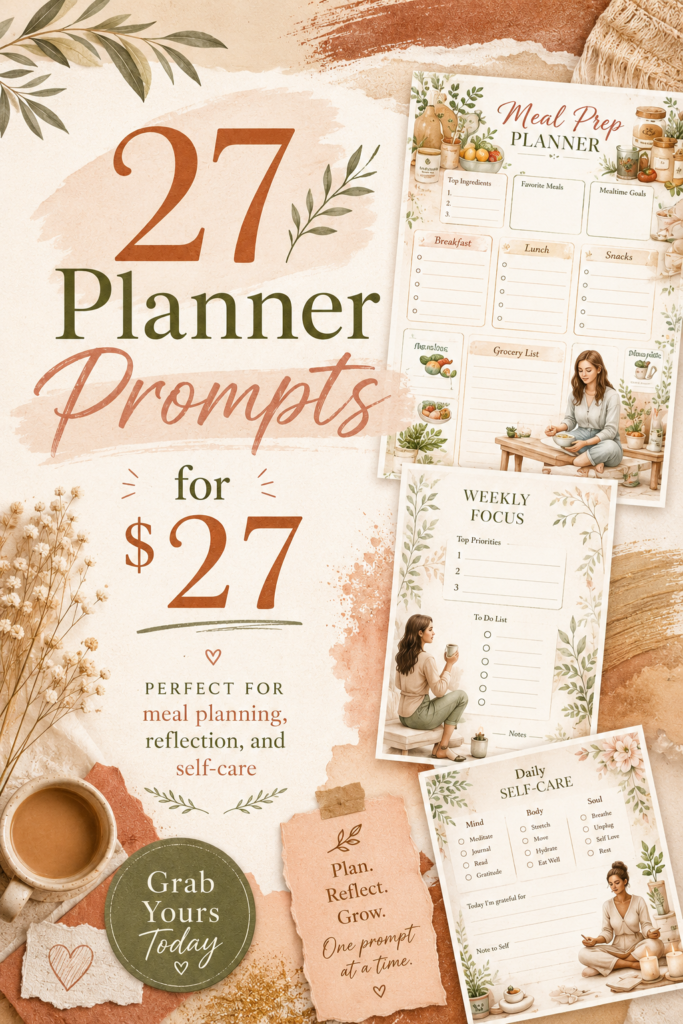
How to Create Luxury Planner Designs in Under 5 Minutes Using AI
Introduction: Stop Staring at a Blank Page
Let’s be real.
One of the hardest parts of creating a planner, journal, or digital product is not always the design itself.
It is getting started.
You sit there staring at a blank page thinking:
Where should the title go?
What should the layout look like?
What colors should I use?
How do I make this look professional?
And before you know it, you have spent 30 minutes just trying to figure out the first step.
That is exactly why AI planner prompts are so powerful.
A good prompt helps you skip the blank-page struggle and move straight into creating. Instead of starting from scratch every single time, you can use a simple design system that gives you the layout, structure, and creative direction faster.
That is how you start creating beautiful planner pages, journal covers, and printable digital products without spending hours trying to figure everything out by yourself.
In this post, I am going to walk you through how to create luxury planner designs in under 5 minutes using three simple tools:
A structured AI prompt
An AI image generator
Canva for the final cleanup and export
Why AI Planner Prompts Save So Much Time
When you are creating a planner from scratch, there are a lot of decisions to make.
You have to think about the page size, layout, margins, colors, fonts, spacing, and overall design style.
That is a lot to figure out before you even create the actual product.
This is where AI prompts can help you move faster.
Instead of opening a blank page and guessing your way through the design, you can start with a prompt that already gives the AI clear instructions.
The prompt becomes your design shortcut.
It tells the AI what to create, what size to use, what style to follow, and what kind of finished product you want.
That means you are not just randomly asking AI to make something pretty.
You are giving it direction.
And that is the difference between a basic AI design and a polished planner design that looks like something you can actually sell.
Step 1: Start With a Strong Base Prompt
The first thing you need is a strong foundation.
Think of your base prompt like the bones of your design.
This is the part of the prompt that tells the AI the page size, layout, quality, and overall setup.
For example, your prompt could start like this:
Create a high-resolution printable gratitude journal cover page. Page size: 8.5 x 11 inches, vertical, 300 DPI, print-ready. Layout: centered elegant composition with open breathing room.
This part is important because it keeps your design clean and professional.
You do not want to change the structure every time.
Keep the page size, layout, resolution, and print-ready instructions the same.
That is your foundation.
Once you have that part in place, you can change the style, colors, and details to create different planner designs.
Step 2: Add Your Style and Brand Look
This is where the design starts to feel custom.
Instead of using basic words like “pretty” or “nice,” you want to use clear design words that tell AI exactly what kind of look you want.
For example, you can add:
Color palette: Sage and cream
Decorative elements: Watercolor leaves and soft arches
Now the AI has more direction.
It knows the mood.
It knows the colors.
It knows the visual style.
This is how you take a simple prompt and turn it into something that looks more high-end.
You are not just asking AI to make a planner cover.
You are giving it a creative direction.
That is the difference.
And this is where your eye matters.
Because AI can create the design, but you are the one choosing the look, the mood, the colors, and the overall feel.
Step 3: Use AI to Create the First Planner Design
Once your prompt is ready, copy it into your AI image generator.
This could be a tool like Ideogram, Leonardo AI, Midjourney, ChatGPT image generation, or any AI design tool you like using.
The goal is not to create the perfect finished product on the first try.
The goal is to get a strong starting point.
AI can help you create beautiful backgrounds, watercolor textures, decorative elements, page covers, and layout ideas much faster than starting from scratch.
This is where the time-saving really happens.
Instead of spending an hour trying to design every detail yourself, AI gives you a first draft that you can clean up and improve.
That is how you go from idea to design faster.
Step 4: Fix the Design Like a Creative Director
Now here is something people need to understand.
AI is not perfect.
It may create a beautiful background, pretty textures, and a gorgeous layout.
But the text may be wrong.
You might see misspelled words, strange letters, or symbols that do not make sense.
Do not throw the whole design away.
Just fix it.
This is where Canva comes in.
Upload your AI design into Canva.
Then cover the messy text with a rectangle.
Use the color picker to match the rectangle to the background.
Then add your own clean text on top using Canva fonts.
For example, you could type:
Living With Peace
Now your title is spelled correctly, the design still looks beautiful, and you did not have to start over.
That is the power of using AI with your own creative direction.
You let AI do the heavy lifting, but you still stay in control of the final design.
Step 5: Export Your Planner Design the Right Way
Once your design is finished, you want to make sure it prints correctly.
A beautiful planner design still needs the right export settings.
In Canva, choose PDF Print when you are saving your file.
This gives you a higher-quality file for printing.
Use CMYK if you have access to that setting because it is better for professional print colors.
Make sure your page size stays at the actual size.
Do not choose “fit to page” when printing because that can shrink your design and mess up your margins.
Also choose the highest print quality available so your colors, textures, and details stay crisp.
This matters because your digital product should not only look good on the screen.
It should also look good when someone prints it.
Quick Print-Ready Checklist
Before you upload, sell, or print your planner design, check these settings:
File type: PDF Print
Page size: 8.5 x 11 inches, or your chosen planner size
Resolution: 300 DPI when possible
Color profile: CMYK if available
Print setting: Actual size or borderless
Quality: Maximum quality
Margins: Make sure nothing important is too close to the edge
This quick checklist can save you from creating a beautiful planner page that prints wrong.
How to Turn One Prompt Into a Whole Planner Collection
Once you understand this process, you can use it over and over again.
You do not have to start from zero every time.
You can keep the same base prompt and just change a few things.
Change the color palette.
Change the theme.
Change the decorative elements.
Change the title.
Change the type of planner page.
That means one prompt can help you create many different products.
You can create:
Gratitude journals
Goal planners
Habit trackers
Holiday worksheets
Content planners
Self-care pages
Budget planners
Reading logs
Daily planners
Weekly planners
Printable journal covers
This is how you save time.
This is how you create faster.
And this is how you start building a custom design library without spending hours on every single page.
Why This Works for Digital Product Creators
If you are creating digital products, time matters.
You do not want to spend all day stuck on one design.
You need a system that helps you create faster without making your products look cheap or rushed or generic.
Click here to start creating your planner today!
That is why this AI planner design process works so well.
The prompt gives you structure.
The AI image generator gives you the first visual draft.
Canva gives you control over the final design.
Together, these tools help you create planner designs that look polished, custom, and professional.
And the best part is, you can use this same process again and again.
Final Thoughts: Create Faster Without Starting From Scratch
Stop staring at a blank page.
Use the prompt.
Create the first version.
Clean it up in Canva.
Then keep going.
You do not need to reinvent the wheel every time you create a planner, journal, or printable product.
You need a simple system that helps you move from idea to finished design faster.
That is how you create luxury planner designs in less time.
And once you have a system, creating digital products becomes a whole lot easier.
Call to Action
Want to create planner pages faster without guessing what to type into AI click here?
Start with a structured planner prompt that gives you the layout, style, and creative direction from the beginning.
Your next planner design does not have to start with a blank page.